Creating an Active Directory Lab Environment in Azure for Penetration Testing

Introduction
Active Directory is one of the most commonly used technologies in a corporate environment with 95% of fortune 1000 companies utilizing it. I was always intimidated by Active Directory because I didn’t know how to learn about it without potentially breaking it. I decided to do some research on how to create a lab so that I could have absolute freedom to break and troubleshoot it in any way I want.
Another reason for creating this lab was to gain more experience with Azure. I am fairly comfortable working in AWS since I use it for my own personal projects, however, I have not given Microsoft Azure the same amount of attention.
Step 1: Creating a resource group
The first step we need to take is creating an Azure resource group. A resource group is a container that holds related resources for our Azure lab.
To create a resource group click on the ‘resource group’ tab and fill in the details relevant to your location and lab

Step 2: Creating a virtual network
Creating a virtual network within Azure is important because it will allow all our machines to sit on the same network and communicate with each other.
Creating a virtual network in Azure is trivial. Simply click the ‘Virtual Network’ tab and create a new one. Ensure you place your virtual network in the resource group you created in step one.

Step 3: Creating and configuring the domain controller
A domain controller (DC) is the brain of an Active Directory environment. The domain controller handles authentication, stores user account information, and enforces security policies on a Windows domain.
To create the domain controller I created a virtual machine in Azure running Windows Server 2019 Datacenter-Gen1. I decided to run this on a Standard B1ms virtual machine (One of the cheapest machines Azure offers) because this lab is just for testing and I don’t need a high end machine for simple testing purposes. For the sake of brevity I am just showing the review tab.

Once the machine is done being created, download the RDP file and connect to the machine. (I have found the best RDP program on Linux is Remmina). From here the windows server manager should pop up. Click Add roles and features

Next, Click through the add roles and features wizard until you get to the Server Roles tab. From here check the Active Directory Domain Services role

Next, Click through to the end of the install wizard and then click install.
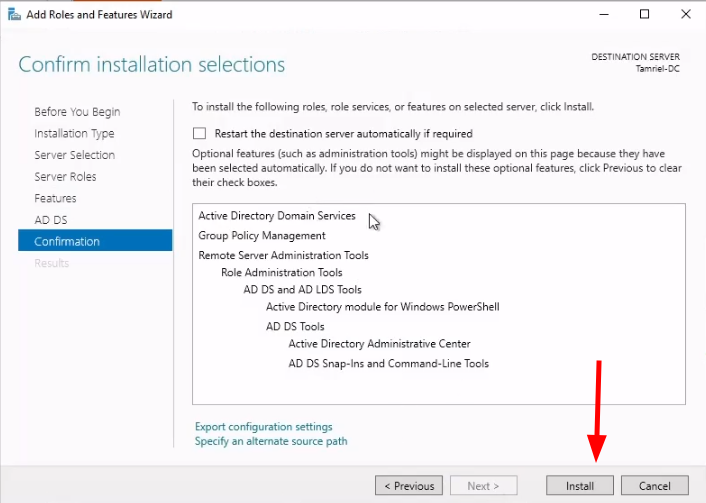
When Windows is done installing the new role, you will get a notification flag in the upper right of your server manager window. Click it and click Promote this server to a domain controller.

Next we need to add the domain controller to a new forest. One AD instance can contain multiple domains. A forest is the highest level container and contains all the domains.

Click Add a new forest and type your root domain name. It is best practice to add .local to the end of your root domain.

Next, Create a password for directory services restore mode then Click through the the rest of the pages and install the AD domain services and restart your virtual machine

After your machine has rebooted, open the server manager again and click add roles and features. Click through to the Server Roles tab and click Active Directory Certificate services then click through to the end of the wizard and install the features.

Step 4: Adding users and computers
To add users and computers go

From there adding a new user is simple. Right click the Users folder and select User.
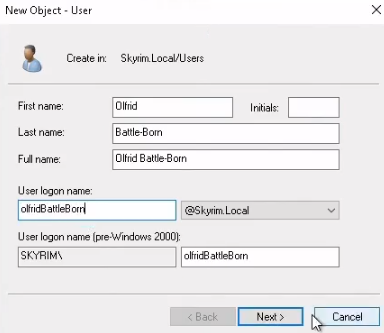
Step 5: Creating virtual machines for users to log in to
Adding a virtual machine that we will later connect to the domain will allow each user to login to their own machine. This simulates having a single physical computer for each employee in an office environment.
In Azure create another virtual machine, ensuring it is in the ADLab resource group. Again, I have chosen a standard B1ms virtual machine as performance is not really a concern for testing purposes.

You can create as many machines as you want but for my purposes I chose to only create two users so I will only be adding two workstations.
Step 6: Connecting virtual machines to the domain controller
Connecting the virtual machines to the domain will allow our machines to be managed by the domain controller.
The first step is to change the virtual machine’s DNS server to the domain controller.

After rebooting, go to the Access work or school settings in windows, click Add and then click Join this device to a local active directory domain

Next, type the name of your domain and login using the administrator account.

Finally enter the credentials of the user that will be using the computer. In this case it will be the user Olfrid Battle-Born. Now restart the computer

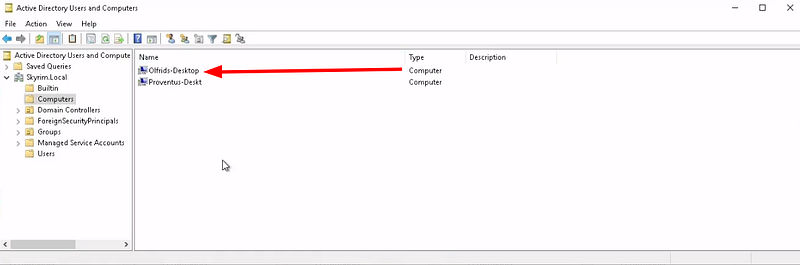
To verify the user was successfully added to the domain we can check the domain controller and see the Computer Olfrids-Desktop appears in our computers tab.
Bonus Step: Adding a Kali Linux machine to the network to practice pentesting active directory
The main goal of this lab was to understand how Active Directory works but we can take this one step further by adding a new Kali Linux machine to the network for pentesting.
To add a Kali machine to the network simply create a new virtual machine in the ADLabNet virtual network and put it in the same resource group as the AD network.

Once we create this machine we can SSH into it from our local Linux machine and run an nmap scan on the active hosts

Conclusion
After spending many hours creating and playing around in this lab I can say that creating this lab was a fantastic way for me to learn how Active Directory and Azure works. Not only did I learn a lot but the experience gained from physically setting up the environment is invaluable. Overall this entire experiment only cost a total of $.43 which is nearly unbelievableTotal Cost of Lab

Here are some of the resources I used to help me set up this lab
https://www.youtube.com/watch?v=hZ2QiiHyTnU
https://www.dnsstuff.com/active-directory-best-practices
https://www.youtube.com/watch?v=xftEuVQ7kY0
https://www.comparitech.com/net-admin/active-directory-step-by-step-tutorial/
Last updated